How to Catalog a Home Library
By The PageSwipe Team · 15 April 2026
Cataloguing a home library means creating one searchable record of every book you own — so you can find a title in seconds, stop buying duplicates, and actually lend books without losing track of them. You can do it three ways: a manual list, a spreadsheet, or a barcode-scan app. The right choice depends on how many books you have and how much you want to do with the record afterwards.
This guide walks through all three honestly, shows you exactly what to record for each book, and gives you a repeatable process you can start today — whether your collection is fifty books or five thousand.
The three ways to catalogue a home library
Every method produces the same thing in the end: a list you can search. They differ in speed, effort, and what you can do with the result. Here is the honest comparison.
| Method | Speed | Best for | Strengths | Limitations |
|---|---|---|---|---|
| Manual list (notebook / notes app) | Slowest | Under ~50 books, one-off | No tools needed; works for books with no barcode | Hard to search, sort or share; you type everything |
| Spreadsheet (Excel / Google Sheets) | Slow–medium | People who like columns and control | Sort, filter, free, portable; own your file | Still mostly manual entry; no covers; no lending or sharing built in |
| Barcode-scan app | Fastest | Any collection you want kept current | Scan the ISBN and details fill in; searchable; can share and lend | Pre-barcode and some self-published books need manual entry |
Method 1 — The manual list
Open a notebook or a notes app and write a line per book: title, author, and where it lives. There is nothing wrong with this for a single small shelf, and it is the only option for a box of antiquarian books with no barcodes. The catch is that a handwritten list can't be searched, sorted, or shared, and it goes stale the moment you lend a book out. Treat it as a starting point, not a system.
Method 2 — The spreadsheet
A spreadsheet is the classic upgrade. You make a column for each field — title, author, ISBN, shelf, status — and one row per book. Now you can sort by author, filter to "lent out", and keep the file forever. It is free and you own it outright. The downside is that you are still typing most of it by hand, there are no cover images, and a spreadsheet has no idea how to help you lend a book or let a friend browse your shelves. Many people start here and move on once the file gets big and boring to maintain.
Method 3 — The barcode-scan app
This is the fastest method by a wide margin. Modern books carry a barcode on the back cover that encodes the ISBN — the unique 13-digit identifier for that edition. A barcode-scan app reads that code with your phone camera and pulls in the title, author, cover and publication details automatically. You point, it beeps, you move to the next spine. A shelf that would take an hour to type becomes a few minutes of scanning. Because the result lives in an app, it is instantly searchable — and, with the right app, shareable and lendable too.
If you're deciding between apps specifically, we compare the leading options in the best home library apps, and we cover the mechanics of scanning in how to scan ISBN barcodes.
What to record for each book
Whatever method you pick, decide up front what each entry should contain. Recording too little makes the catalogue useless; recording too much makes it a chore you abandon. Here is a sensible set of fields, split into the essentials and the nice-to-haves.
| Field | Why it matters | Essential? |
|---|---|---|
| Title | The obvious key you'll search by | Yes |
| Author | Sort and group your shelves by writer | Yes |
| ISBN | Uniquely identifies the exact edition; lets an app auto-fill everything else | Yes |
| Shelf / room location | So you can walk to the physical copy, not just confirm you own it | Yes |
| Status | Owned, reading, or lent out — the field that stops books vanishing | Yes |
| Format | Hardback, paperback, ebook — matters once you own multiple copies | Optional |
| Genre / tags | Browse by mood or subject rather than alphabetically | Optional |
| Rating / notes | Your own verdict, for recommending later | Optional |
| Purchase price / condition | Only if you're cataloguing for insurance or as a collector | Optional |
The two fields people most often skip — and most regret skipping — are location and status. A catalogue that tells you a book exists but not where it is only solves half the problem, and one that doesn't track who has borrowed a book will quietly lose you copies over the years.
A step-by-step process that works for any collection
Here is the process we recommend regardless of method. It's the same whether you're building a spreadsheet or scanning into an app.
- Pick one method and commit. Don't half-catalogue into three systems. If your collection is anything above a couple of shelves, choose the barcode-scan app — you'll thank yourself.
- Decide your fields. Use the essentials above: title, author, ISBN, location, status. Add optional fields only if you'll genuinely use them.
- Work shelf by shelf, left to right. Never jump around. Finish a shelf completely before moving on, so you always know exactly where you stopped.
- Capture each book once. Scan the barcode (or type the ISBN, or the title and author for books without one). Confirm the cover that appears matches the book in your hand — editions differ.
- Set location as you go. Tag the whole shelf with its location before you start it, so every book inherits it. This is the single biggest time-saver.
- Handle the exceptions at the end. Set aside pre-barcode, antiquarian, or self-published books with no ISBN and enter those by hand in one final pass.
- Do a quick spot-check. Search for three books you know you own. If they come up with the right details, your catalogue is trustworthy.
Cataloguing a whole house at once is the mistake that kills most projects. One shelf a sitting is sustainable; the whole living room in an afternoon is not.
Tips for large collections
Once you're past a few hundred books, a few habits make the difference between a catalogue you finish and one you abandon:
- Batch by location, not by genre. Your physical shelves are your natural batches. Match the catalogue to the room, and finding books later becomes trivial.
- Use continuous scanning. The slow part of any big catalogue is the pause between books. An app that lets you scan one spine after another without stopping to confirm each entry is what makes a wall of books feasible in an evening.
- Import what you already have. If you kept a Goodreads shelf or an old spreadsheet, import it rather than re-entering it. PageSwipe imports from Goodreads and spreadsheets, so previous effort isn't wasted.
- Accept "good enough" first, refine later. Get every book in with the five essential fields, then add ratings, tags and notes over time. A complete rough catalogue beats a perfect half-finished one.
- Keep it current from day one. When a new book comes in, scan it before it hits the shelf. Thirty seconds now saves a re-catalogue later.
For a deeper walkthrough of tackling a genuinely big shelf, and for organising once it's all in, see our guides on choosing a home library app and scanning ISBN barcodes accurately.
The fast, free way: scan your shelf with PageSwipe
PageSwipe was built for exactly this. Its RapidScan feature does continuous ISBN-barcode scanning: you move down a shelf pointing your phone at each spine, it reads the barcode and fills in the title, author and cover, and your searchable library builds itself as you go. In our own testing an illustrative shelf of about 127 books came together in roughly eight minutes of continuous scanning — the kind of pace that makes cataloguing an entire home realistic rather than a someday project.
PageSwipe is a free platform for readers and authors: scanning, cataloguing, sharing, lending, clubs, collections, discovery, book pages, and launch clubs are not gated. PageSwipe earns revenue through book-native advertising with authors and publishing houses at scale.
That's the real advantage of scanning into a connected app rather than a static list: the same few minutes of work gives you a catalogue you can actually use, not just a record you'll rarely open.
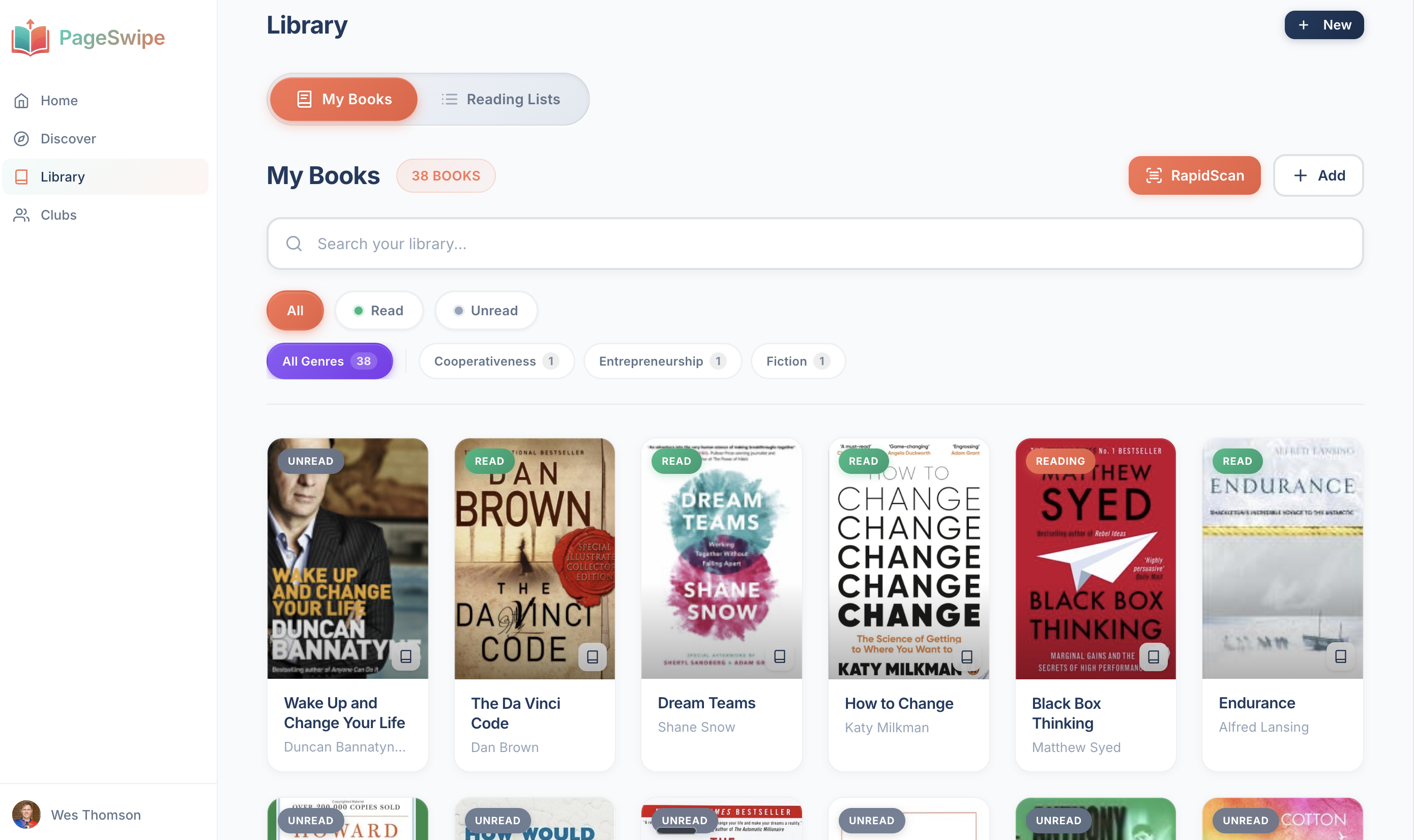
Ready to start? Scan your first book with RapidScan and watch your shelf turn into a searchable library. See how the scanner works on the book barcode scanner page, or learn more about building your collection on the home library app page.
Frequently asked questions
What is the fastest way to catalog a home library?
Scanning barcodes with a phone app is the fastest way. A dedicated ISBN barcode scanner reads the code on the back cover and pulls in the title, author, cover and publication details automatically, so you never type them. For a large shelf this is several times faster than a manual list or spreadsheet — an illustrative example is cataloguing a searchable library of about 127 books in roughly 8 minutes of continuous scanning.
What information should I record for each book?
At a minimum record title, author, and ISBN. Add the shelf or room location so you can find the physical copy, and a status field (owned, reading, lent out) so you know where each book is. Optional fields worth adding are format, edition, rating, tags or genre, and — for insurance or collectors — purchase price and condition.
Do I need the ISBN to catalog a book?
No, but it helps. The ISBN is the unique 13-digit number under the barcode on modern books, and it lets an app fetch accurate details in one scan. Books printed before 1970, many antiquarian titles, and some self-published editions have no ISBN — for those you enter the title and author manually, which every method supports.
Is it free to catalog a home library with an app?
PageSwipe is a free platform for readers and authors: scanning, cataloguing, sharing, lending, clubs, collections, discovery, book pages, and launch clubs are not gated. PageSwipe earns revenue through book-native advertising with authors and publishing houses at scale.
Start your catalogue today. Scan your first book with RapidScan — one shelf, a few minutes, and your home library is searchable for good.