Free Home Library Spreadsheet Template
By The PageSwipe Team · 25 May 2026
A home library spreadsheet is a single sheet with one row per book and a column for each detail you want to keep — title, author, ISBN, where the book lives, whether it is lent out. Below is a free template you can copy: the exact eleven columns worth using, how to build the sheet in Excel or Google Sheets in a few minutes, and how to actually use it once it exists. It is genuinely useful, it costs nothing, and plenty of people run their whole collection this way.
We will also be honest about where a spreadsheet stops being the right tool — because past a certain number of books, typing every field by hand is the slow part, and a static sheet can't help you lend, share, or find a title on the shelf. When you reach that point, you can move the whole thing into an app without losing a row.
The free home library spreadsheet template
Here is the template. Each row below is a column to add to your sheet. Copy the headings in the first column straight across row 1 of a blank spreadsheet and you have a working book inventory. The first five are the ones that make the catalogue worth having; the rest are low-effort extras you can fill in when you feel like it.
| Column | What goes in it | Example | Essential? |
|---|---|---|---|
| Title | The book's full title, as printed on the cover | The Left Hand of Darkness | Yes |
| Author | Surname first if you want to sort by author | Le Guin, Ursula K. | Yes |
| ISBN | The 13-digit number under the barcode; the unique key for that edition | 9780441478125 | Yes |
| Format | Hardback, paperback, ebook, audiobook | Paperback | Recommended |
| Genre | One or two words so you can browse by subject or mood | Science fiction | Optional |
| Shelf / Location | Which room and shelf the physical copy is on | Study — shelf 3 | Yes |
| Status | Owned, Reading, Lent out, Wishlist — the field that stops books vanishing | Lent to Sam | Yes |
| Rating | Your own score, 1–5, for recommending later | 5 | Optional |
| Date added | When you catalogued or acquired it; format the cell as a date | 2026-05-25 | Optional |
| Notes | Signed copy, first edition, a gift, who recommended it | Signed at Hay Festival | Optional |
| Value | Purchase price or estimated value; format as currency (for insurance or collecting) | £14.99 | Optional |
The two fields people most often leave out — and most often wish they had — are Shelf/Location and Status. A catalogue that confirms you own a book but can't tell you where it is solves only half the problem, and one that never records who borrowed a copy will quietly lose you books over the years. Everything else on the list is a bonus; those two are the difference between a real inventory and a list.
How to set it up in Excel or Google Sheets
The template is the same in both programs; only a couple of menu names differ. Here is the whole process, start to finish.
- Open a blank sheet. A new workbook in Excel, or a new spreadsheet in Google Sheets. Name the file something you'll find again — "Home Library" is fine.
- Type the eleven headings across row 1. Title, Author, ISBN, Format, Genre, Shelf/Location, Status, Rating, Date added, Notes, Value — one per cell, A1 through K1.
- Bold and freeze the header row. Select row 1 and make it bold. Then freeze it so it stays on screen as you scroll: in Excel, View › Freeze Panes › Freeze Top Row; in Google Sheets, View › Freeze › 1 row.
- Make it sortable. In Excel, select your headings and press Ctrl/Cmd + T to turn the range into a table. In Google Sheets, select row 1 and choose Data › Create a filter. Now every column sorts and filters from a little arrow in the header.
- Format two columns. Set Date added to a date format and Value to currency, so sorting and totals behave. In both apps this lives under Format › Number.
- Add a dropdown for Status (optional). Data validation on the Status column with a fixed list — Owned, Reading, Lent out, Wishlist — keeps the field tidy and filterable. It's Data › Data validation in both programs.
- Enter books shelf by shelf. One row per book, working left to right along each physical shelf so you always know where you stopped. Type the location once and fill it down the column for the whole shelf.
- Let it save. Google Sheets saves and syncs automatically. For Excel, keep the file in a synced folder (OneDrive, iCloud, Dropbox) so a dead laptop doesn't take your catalogue with it.
For a deeper, screenshot-level walkthrough of the desktop side, see our guide to cataloguing books in Excel. The approach is identical in Google Sheets — the same columns, the same freeze-and-filter steps.
How to actually use the spreadsheet
A catalogue is only worth building if you use it. Once your books are in, the sheet earns its keep in a few everyday ways:
- Find a book before you buy it again. Standing in a bookshop, filter the Title or Author column on your phone. If it's already there, you just saved yourself a duplicate.
- Track what's lent out. Filter Status to "Lent out" and you have an instant list of who has what. Update it the day a book goes out, not the day you go looking for it.
- Sort your shelves in your head. Sort by Author or Genre to see the shape of your collection — where the gaps are, which authors you over-buy.
- Value it for insurance. Sum the Value column for a defensible total of what your library is worth. Our guide to a home library app versus a spreadsheet covers how far each method takes an insurance record.
None of this is exotic. It is exactly what a spreadsheet is good at: rows, columns, sorting, filtering. For a lot of collections that is genuinely enough, and there is no shame in stopping here.
Where a spreadsheet stops being the right tool
Your library deserves better than a spreadsheet the moment the spreadsheet starts costing you more than it gives back — and for a growing collection, that moment usually arrives. The honest limits:
| The friction | Why it bites |
|---|---|
| You type every field by hand | Title, author, ISBN, format — all typed, one book at a time. A few hundred books is hours of data entry, and typos in the ISBN quietly break your records. |
| No barcode scanning | The barcode on every modern book already encodes its ISBN, but a spreadsheet can't read it. You copy numbers by eye instead of pointing a camera. |
| No cover images | A wall of text rows is harder to scan than a shelf of spines. You lose the visual recognition that makes a real library browsable. |
| No lending or sharing built in | A "Lent out" cell is a note to yourself. It can't let a friend browse your shelves, ask to borrow a title, or remind anyone a book is due back. |
| No clubs or recommendations | A spreadsheet is a private file. It can't connect your shelf to the people you actually read with, or let them recommend from what you own. |
| It goes stale | Every new book is another manual row. Miss a few and the catalogue quietly stops matching the shelf — the fastest way to abandon it entirely. |
These aren't reasons a spreadsheet is bad. They're reasons it's a list, not a library. It records what you own; it can't do anything with what you own.
The one-scan alternative — and you keep the spreadsheet you've built
PageSwipe is built for the thing a spreadsheet can't do: it fills the books in for you. Its RapidScan feature reads the ISBN barcode on each back cover with your phone camera and pulls in the title, author, cover and edition automatically — you point at a spine, it beeps, you move to the next. There is nothing to type. In our own testing an illustrative shelf of about 127 books came together in roughly eight minutes of continuous scanning, the pace that makes cataloguing a whole home realistic rather than a someday project.
PageSwipe is a free platform for readers and authors: scanning, cataloguing, sharing, lending, clubs, collections, discovery, book pages, and launch clubs are not gated. PageSwipe earns revenue through book-native advertising with authors and publishing houses at scale.
Crucially, you don't throw away the work you've already done. PageSwipe has a spreadsheet import: upload the file you built from this template, match your columns to the fields, and the whole catalogue moves across without re-typing a single row. From that point you keep adding by scanning instead of typing. The spreadsheet was never wasted — it was the first draft of a library that can now do more.
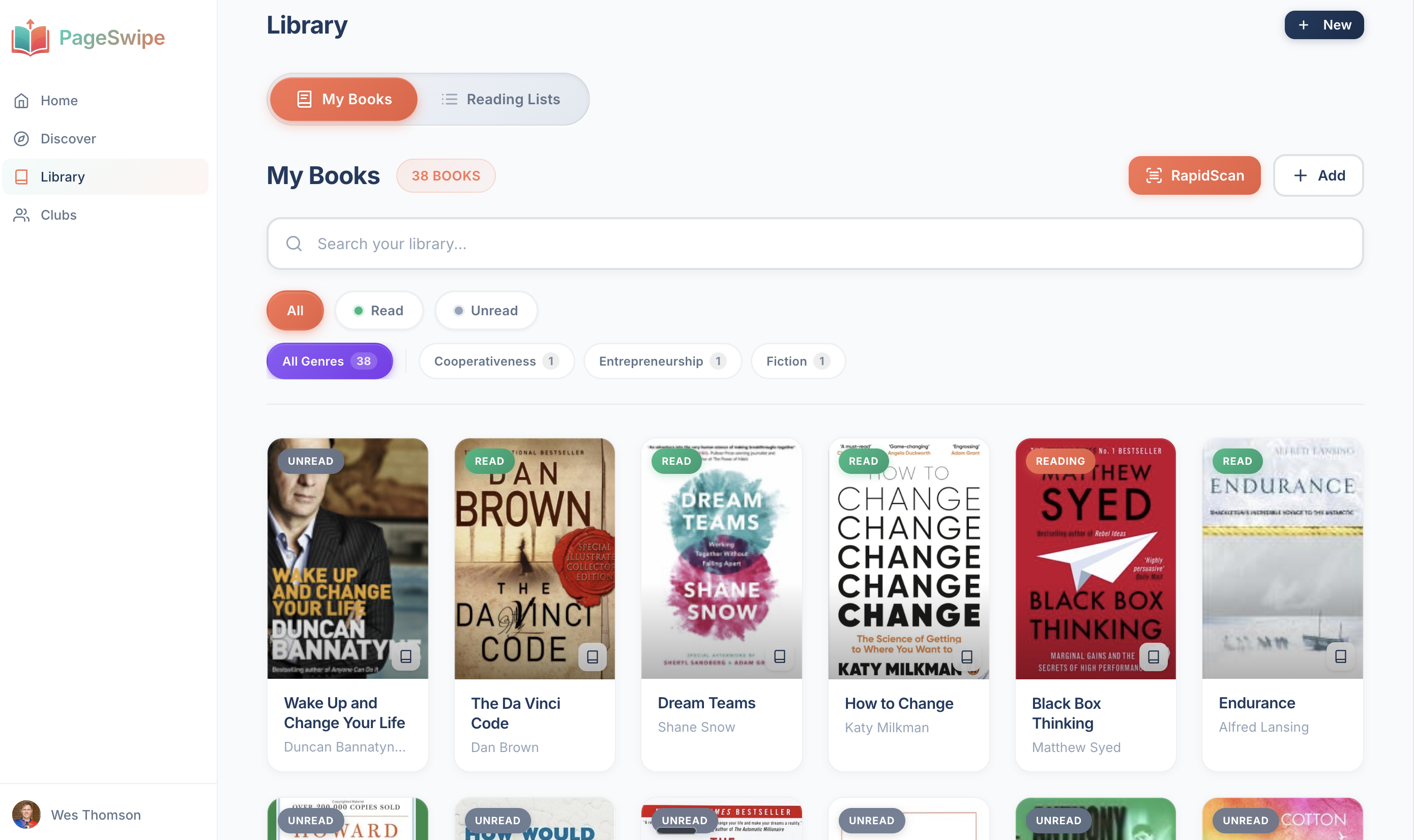
Ready to stop typing? Scan your first book with RapidScan and watch a book fill itself in. You can bring your spreadsheet across whenever you're ready, or read more on the home library app page.
Frequently asked questions
What columns should a home library spreadsheet have?
A useful home library spreadsheet has eleven columns: Title, Author, ISBN, Format, Genre, Shelf/Location, Status, Rating, Date added, Notes, and Value. Title, Author and ISBN identify the book; Shelf/Location and Status tell you where the physical copy is and whether it is lent out. The rest are optional but low effort — Format, Genre, Rating, Date added, Notes, and Value for insurance or collecting.
How do I make a book inventory spreadsheet in Excel or Google Sheets?
Open a new sheet, type the eleven column headings across row 1, then freeze that row so it stays visible. Format the header row bold, turn the range into a table (Excel) or apply a filter (Google Sheets) so every column sorts and filters, set Date added and Value to date and currency formats, and add one row per book working shelf by shelf. Google Sheets saves and syncs automatically; save your Excel file to a synced folder so you do not lose it.
Is a free book inventory spreadsheet good enough for a large collection?
A spreadsheet works and costs nothing, but it becomes slow past a few hundred books because you type every field by hand — there is no barcode scan, no cover images, and no built-in way to lend, share, or run a book club. For a large or growing collection a barcode-scan app fills in the details automatically and does more with the record. PageSwipe imports an existing spreadsheet, so you never lose the work you have already done.
Can I move my book spreadsheet into an app later?
Yes. PageSwipe has a spreadsheet import: you upload your existing file, match your columns to the fields, and your whole catalogue moves across without re-typing. From there you can keep adding books by scanning their barcode instead of typing, and you gain searching, lending, sharing and clubs that a spreadsheet cannot offer.
Keep the spreadsheet as long as it serves you. When typing every row starts to wear thin, scan your first book with RapidScan and import the rest — one shelf, a few minutes, and your list becomes a library you can actually use.