How to Create a Book Inventory in Google Sheets
By The PageSwipe Team · 2 June 2026
A book inventory in Google Sheets is one searchable list of every book you own, built from columns you control and stored in a file you keep forever. It costs nothing, works on your phone, and can be shared with the whole household by link. This guide gives you the exact columns to use, shows you how to add dropdown menus and a simple ISBN lookup, and covers sharing, mobile access and sorting — then it is honest about where a spreadsheet stops being the right tool.
By the end you'll have a working Google Sheets book catalog you can start filling in today, and a clear sense of whether the grid is enough for you or whether you've outgrown it.
Why use Google Sheets for a book inventory?
Google Sheets is a genuinely good starting point. It's free, it saves automatically to your Google account, it opens on any device, and — unlike a desktop spreadsheet file — it's already in the cloud, so sharing with family is a couple of clicks rather than an email attachment. If you're comparing it with a desktop file, our guide to cataloguing books in Excel covers that route; the two are close, and the main advantage of Sheets is that it's collaborative and online by default.
What Sheets won't do is read the barcode on your books or fetch cover art. Every book still gets typed in by hand, and that reality shapes everything below — so the goal is to make each entry as quick and consistent as possible.
Step 1 — Set up your columns
Open a new Google Sheet and put one field per column across the first row. These are the columns worth having. The first six are the essentials; the last two are optional but useful.
| Column | What goes in it | Example |
|---|---|---|
| Title | The book's title — your main search key | The Left Hand of Darkness |
| Author | Surname first if you like sorting by author | Le Guin, Ursula K. |
| ISBN | The 13-digit number under the barcode | 9780441478125 |
| Format | Hardback, paperback or ebook | Paperback |
| Shelf | Where the physical copy lives | Study — top shelf |
| Status | Owned, reading or lent out | Lent out |
| Rating | Your own score, for recommending later | 5 |
| Notes | Anything else — edition, who has it, condition | Lent to Sam, May 2026 |
Two small setup steps make this far nicer to live with. Select the first row, then use View › Freeze › 1 row so your headers stay visible as you scroll. Then make the header bold, and widen the Title and Notes columns. That's the whole structure — the rest is data.
A note on the ISBN column: format it as plain text before you type, or a long number like 9780441478125 will be stored as a rounded value in scientific notation. Select the ISBN column, then Format › Number › Plain text, and it will keep every digit.
Step 2 — Add dropdowns with data validation
The fastest way to ruin a book inventory is inconsistent entries — "paperback", "PB" and "Paperback " all meaning the same thing but not sorting together. Data validation fixes this by turning a column into a dropdown menu.
- Select the Format column (click the column letter to select the whole thing).
- Go to Data › Data validation, then Add rule.
- Set the criteria to Dropdown and type your options: Hardback, Paperback, Ebook, Audiobook.
- Repeat for the Status column with options: Owned, Reading, Lent out, Wishlist.
Now every Format and Status cell shows a tidy dropdown, and you can never fat-finger a value that breaks your sorting later. This one habit is what keeps a spreadsheet usable past a hundred books.
Step 3 — A simple ISBN lookup (optional)
Here's the honest version of the most-requested feature. Google Sheets has no built-in book database, and it cannot scan a barcode. But you can get it to fetch a book's title and author from an ISBN using the free Google Books API and a short custom function. This is genuinely useful, so here's how.
- Go to Extensions › Apps Script.
- Delete the placeholder code and paste this small function:
function BOOKTITLE(isbn) {
  const url = "https://www.googleapis.com/books/v1/volumes?q=isbn:" + isbn;
  const data = JSON.parse(UrlFetchApp.fetch(url).getContentText());
  if (!data.items) return "Not found";
  const v = data.items[0].volumeInfo;
  return v.title + (v.authors ? " — " + v.authors.join(", ") : "");
}- Save the script, then go back to your sheet.
- In a spare column, type
=BOOKTITLE(C2)whereC2is an ISBN cell. It returns the title and author for that ISBN, which you can copy into your Title and Author columns.
It works, and it saves typing the title and author. But be clear-eyed about what it doesn't do: you still have to get every 13-digit ISBN into the sheet by hand, one book at a time, and there's no cover image. The lookup removes some typing, not the core chore. If typing ISBNs off the back of two hundred books sounds like the actual problem, that's the moment a spreadsheet stops being the right tool — more on that below.
Step 4 — Sort and filter your library
This is where a spreadsheet earns its keep. Once your books are in, you can slice the list any way you like:
- Sort by author: select your data, then Data › Sort range › Advanced, tick "Data has header row", and sort by the Author column A→Z.
- See what's lent out: turn on Data › Create a filter, click the funnel on the Status column, and show only "Lent out". Now you can see every book that's currently out and, from your Notes, who has it.
- Find a specific book: press Ctrl/Cmd + F and type the title.
- Count your collection: in an empty cell,
=COUNTA(A2:A)tells you how many books you own at a glance.
These are the everyday jobs a book inventory exists for — finding a title, spotting duplicates before you buy, and remembering who borrowed what — and the grid handles all of them well.
Step 5 — Share with family and use it on mobile
Because it lives in your Google account, the sheet is easy to share. Click Share in the top-right and either add family members by email or set Anyone with the link to Viewer (they can browse) or Editor (they can add books). Install the Google Sheets mobile app and the same inventory is in your pocket at the bookshop, so you can check whether you already own a title before buying it again.
Sharing is where the cracks start to show, though. Everyone who opens the link sees the raw grid, two people editing at once can overwrite each other's rows, and there's no pleasant public page you can send someone to browse — let alone ask to borrow from. A spreadsheet was never designed to be a library other people visit, and it shows.
The honest limits of a Google Sheets book inventory
A spreadsheet is a great place to start and a fine place to stay if your collection is small and rarely changes. But it's worth naming exactly what you're signing up for, because these limits are the reason most people eventually move on.
- Everything is manual. There's no barcode scan. Every title, author and ISBN is typed or pasted by hand — the slow part scales directly with the size of your shelves.
- No cover images. A wall of text rows is harder to browse than a shelf of covers, and covers are how most of us actually recognise our books.
- Sharing is clunky. A shared grid isn't a library page. There's no clean, browsable view for family or friends, and no built-in way for someone to ask to borrow a book.
- No lending workflow. You can write "lent to Sam" in Notes, but nothing reminds you, and nothing stops the entry going stale the day the book comes back.
- It goes out of date. A manual list is only as current as your discipline. Miss a few new books and the inventory quietly stops being trustworthy.
None of this makes Google Sheets a bad choice — it makes it a starting choice. The question is whether the manual upkeep is worth it for the size of collection you have. We weigh that trade-off in full in home library app vs spreadsheet.
Spreadsheet vs a connected library app
Here's the honest side-by-side, so you can decide where you fall. A spreadsheet wins on cost, control and flexibility; an app wins on speed and on everything that happens after the list exists.
| Job | Google Sheets | Connected app (e.g. PageSwipe) |
|---|---|---|
| Adding a book | Type or paste every field by hand | Scan the ISBN barcode; details fill in |
| Cover images | None | Pulled in automatically |
| Cost | Free | Free to catalogue, unlimited books |
| You own the file | Yes, fully | Export/import supported; not a raw file you edit |
| Sharing | A shared grid by link | A privacy-controlled public library page |
| Lending | A note you maintain by hand | Mark lent, track who has it, take borrow requests |
| Flexibility | Any column or formula you want | Structured fields, not a blank canvas |
Notice the spreadsheet genuinely wins two rows: it's a file you own outright, and it's an infinitely flexible blank canvas. If those matter most to you, stay in Sheets with a clear conscience. If the manual typing and the clunky sharing are what's grinding you down, an app closes exactly those gaps.
If you outgrow the sheet: scan it, don't retype it
PageSwipe is built for the point where a spreadsheet stops keeping up. Its RapidScan feature does continuous ISBN-barcode scanning — you move down a shelf pointing your phone at each spine, it reads the barcode and fills in the title, author and cover, and a searchable library builds itself as you go. In our own testing an illustrative shelf of about 127 books came together in roughly eight minutes of scanning; that's the pace difference between reading a barcode and typing a 13-digit number two hundred times.
And you don't lose the work you've already done. If you've built up a Google Sheet, PageSwipe imports it directly — head to spreadsheet import, map your columns, and your existing inventory comes across so nothing is wasted. From there you get what the grid couldn't give you: covers, a privacy-controlled public library page you can actually send to people, and lending you can track — mark a book lent, see who has it, and take borrow requests from people you trust.
PageSwipe is a free platform for readers and authors: scanning, cataloguing, sharing, lending, clubs, collections, discovery, book pages, and launch clubs are not gated. PageSwipe earns revenue through book-native advertising with authors and publishing houses at scale.
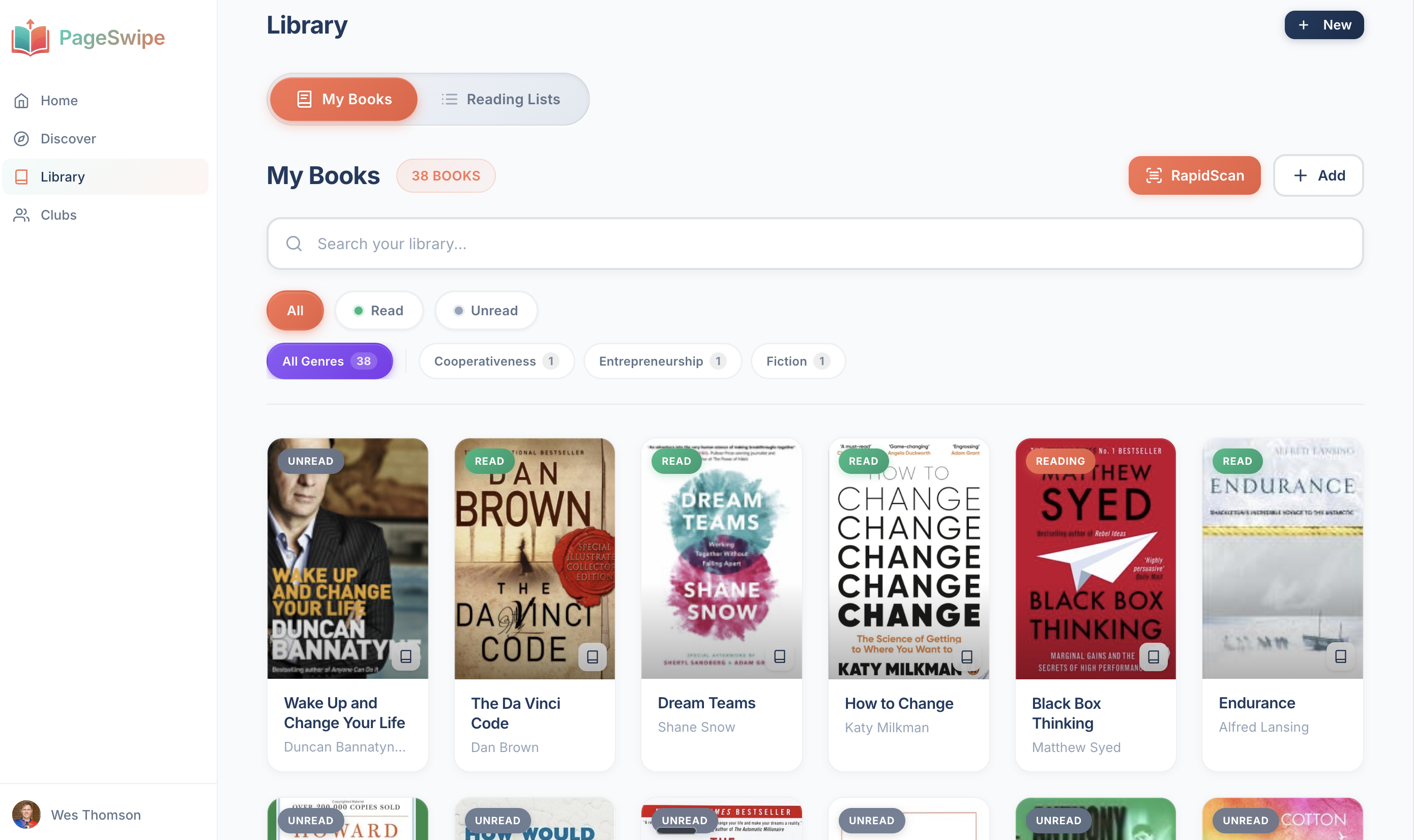
Tired of typing ISBNs? Scan your first book with RapidScan and watch a shelf turn into a searchable library — or bring your existing sheet across on the spreadsheet import page.
Frequently asked questions
How do I make a book inventory in Google Sheets?
Open a new Google Sheet, put one field per column in the first row — Title, Author, ISBN, Format, Shelf, Status, Rating and Notes — then freeze that header row. Add one book per row below it. Use Data validation to turn Format and Status into dropdown menus so entries stay consistent, then sort or filter by any column. Because it is a Google Sheet, it saves automatically, works on the mobile app, and can be shared with family by link.
Can Google Sheets look up a book by its ISBN?
Not on its own, but you can add it. Google Sheets has no built-in book database and cannot scan a barcode. You can wire up a lookup with a short Apps Script custom function that calls the free Google Books API and returns the title and author for an ISBN you type in. It works, but you still have to type or paste each 13-digit ISBN by hand — the spreadsheet cannot read the barcode on the cover.
How do I share a Google Sheets book list with my family?
Click Share in the top-right, then either add family members by email or switch link access to Anyone with the link and choose Viewer or Editor. Viewer lets them browse; Editor lets them add books. The catch is that everyone sees the raw grid, edits can overwrite each other, and there is no clean public page — it is a spreadsheet, not a library anyone can pleasantly browse or borrow from.
Is a spreadsheet or an app better for a book inventory?
A spreadsheet is free, flexible and yours to keep, and it is a fine choice for a small collection you rarely change. An app is faster to build because you scan the ISBN instead of typing it, and it adds things a grid cannot — cover images, a shareable public library page, and lending tracking. If your list is short and static, Google Sheets is enough; if you want to scan a whole shelf, share it nicely, or lend books, an app like PageSwipe does more and imports your existing sheet so nothing is wasted.
Start with the sheet, upgrade when it slows you down. When typing ISBNs stops being worth it, scan your first book with RapidScan — or import your Google Sheet on the spreadsheet import page and pick up where you left off.